USB Drive Shows 0 Bytes or RAW Format: 5 Repair Steps Before You Reformat
You plug in a batch of custom USB drives and one of them opens a window that says "You need to format the disk before you can use it." Or Windows shows the drive as 0 bytes. Or Disk Management lists it as "RAW." None of these means the drive is necessarily dead, and none of them means you should reach for the format button — that is exactly how people lose the preloaded files. Run the steps below in order; most recoverable drives come back before you ever reformat.
Read the symptom before you touch anything
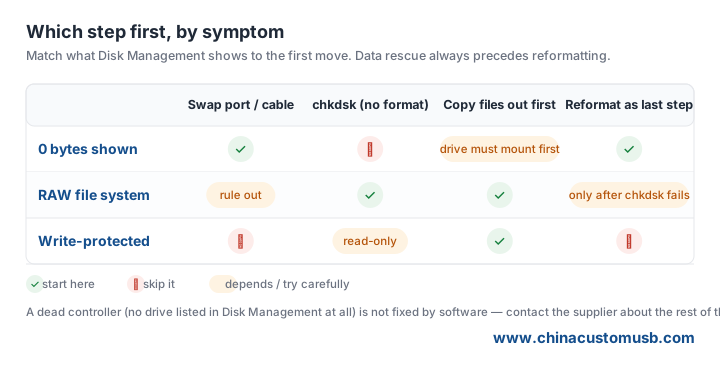
Open Disk Management (right-click the Start button, choose Disk Management) and look at how the drive appears. The three common cases are different problems with different fixes:
0 bytes — the drive shows up but reports no usable capacity. Usually a partition-table or controller hand-off glitch, not dead memory.
RAW file system — Windows cannot read the file system and offers to format. The files are almost always still there; the index is just unreadable.
Write-protected — every write fails. Sometimes a physical switch, sometimes a controller flag set after a bad unplug.
Steps 1 and 2 — swap the port, cable and machine first
Before any software, rule out the cheapest failures. USB ports on the front of a desktop, a worn cable, or a single machine with a flaky controller all produce the same "0 bytes / not accessible" symptom as a bad drive.
Step 1: move the drive to a rear port on a different computer. Rear ports sit on the motherboard and deliver steadier power than front-panel headers.
Step 2: try a different cable if the drive uses a separate connector, and a different USB version (a USB 2.0 port instead of 3.0) if the machine is old. If the drive now shows a capacity and a drive letter, the hardware was the problem — you are done.
Steps 3 and 4 — what Disk Management tells you, and chkdsk without formatting
Step 3: back in Disk Management, confirm the drive has a healthy partition and a drive letter. If it shows as "RAW" with a drive letter, do not accept the format prompt. If it shows as "Unallocated" with no partition, stop — that path needs recovery software, not chkdsk.
Step 4: open a Command Prompt and run chkdsk X: /f (replace X with the drive letter). The /f switch repairs the file system without overwriting data. Do not add /r on a large drive unless /f fails — /r scans every sector and can run for hours. If chkdsk reports "Windows has made corrections," eject and re-plug; the files should reappear.
Step 5 — pull the preloaded files out before you reformat
If the drive mounts after chkdsk, copy the preloaded files off immediately, before doing anything else. This is the moment that decides whether the handout material survives. A simple drag-and-drop to a folder on your hard drive is enough; verify a couple of files open before you trust the rest.
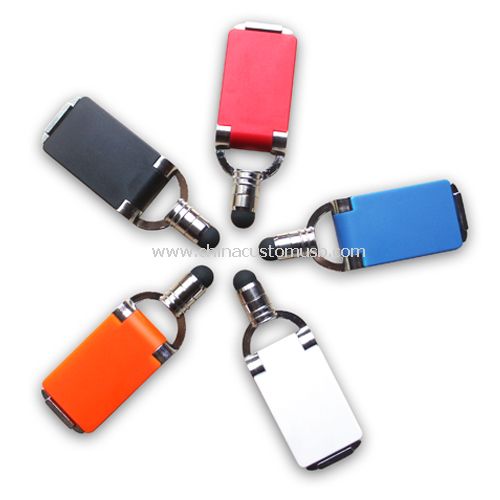
If the batch was ours and the preloaded content matters, the fastest rebuild is a fresh run of the same model rather than rescuing one faulty unit. The mini clip drive below clips to a lanyard, takes a free printed logo at low volume, and is a common carrier for show handouts:
Dead controller vs dead file system — and the other 499 drives
A drive that never appears in Disk Management on any machine, even after swapping ports and cables, usually has a dead controller or dead NAND — software will not bring it back. That is the one case where reformatting is pointless and you should move on.
But one dead unit in a batch of 500 does not mean the batch is bad. Controllers occasionally fail as singletons. If you bought the drives from us, send a photo of the Disk Management window and the printed drive label; we will tell you which of the five steps applies and, for a batch bought from us, check it against the production lot so the other 499 are not at risk.
When to stop and ask
Stop at the first sign of a dead controller, and stop before reformatting if the preloaded files have not been copied off. Send a photo of the Disk Management window and the drive label; we will tell you which of the five steps applies and, for a batch bought from us, check it against the production lot.
Need custom USB drives for your next project?
Factory-direct pricing, free digital proof and a 7-day sample turnaround.
Get a free quote


